Set up the check-in service
The check-in service checks in with you on a schedule. If you stop checking in, it reminds you, then asks your family, waits, and only then sends them their release keys. Any check-in from you stops it.
Follow along: click the app window and press Windows key + Left arrow, then click this browser and press Windows key + Right arrow. The app and this guide sit side by side.
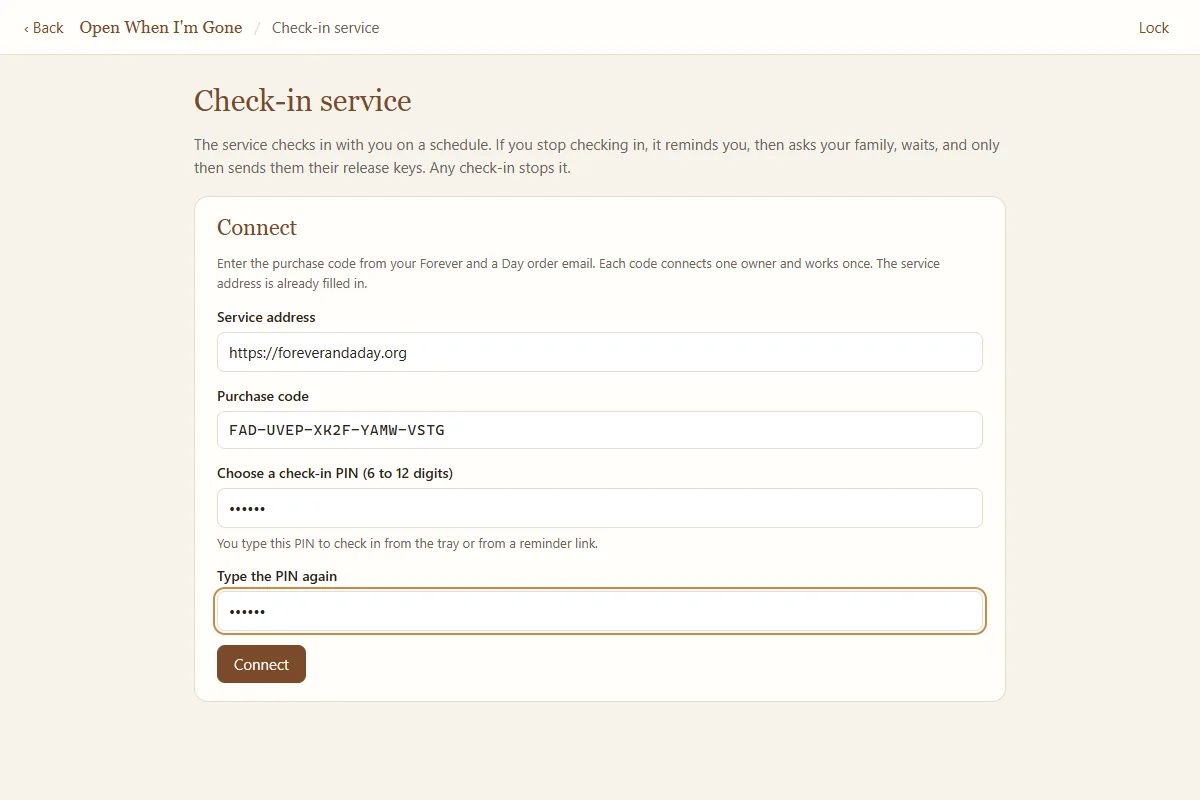
Connect with your purchase code
- Open the check-in service screenOn the home screen click Check-in service (top right).
- Leave the service address as it isService address is already filled in with https://foreverandaday.org.
- Enter your purchase codeType or paste the code from your order email into Purchase code. It looks like FAD-XXXX-XXXX-XXXX-XXXX. Each code connects one owner and works once.
- Choose a check-in PIN6 to 12 digits, typed twice. You type this PIN every time you check in, from the small check-in window or from a reminder link. Pick something you will remember and others will not guess. This version has no way to change it later, so write it down with your master password.
- ConnectClick Connect. The app sends your name and each person's name and three questions (never the answers), and the status shows Active.
The release key for each person is sent to the service when you print their kit. If the service says "No release key on file yet" for someone, open their page, click More, then Change questions or print a new kit, and print the new kit. That sends the key automatically.
Status and checking in
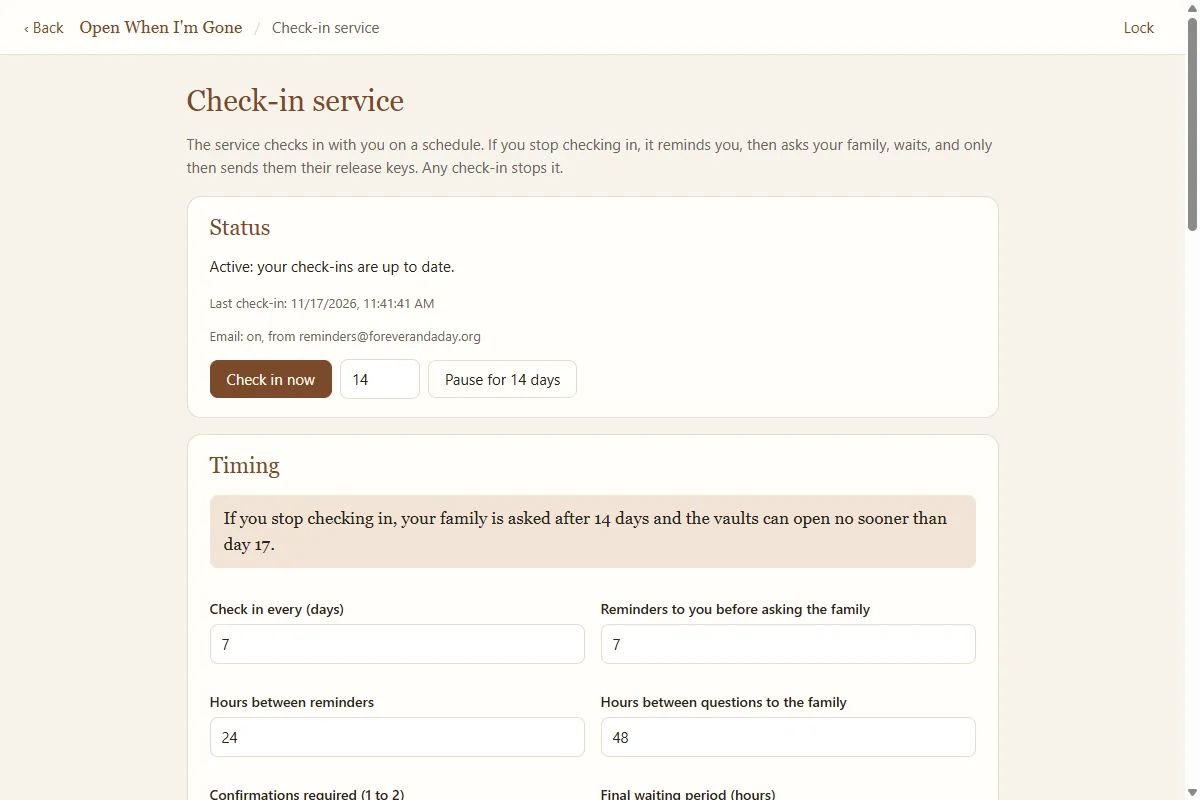
The top of the screen shows where things stand:
| Status | Meaning |
|---|---|
| Active | Your check-ins are up to date. Nothing is sent to anyone. |
| Reminding | A check-in is overdue and you are being reminded. |
| Your family is being asked | Reminders ran out, so your family is being asked whether you have passed away. |
| Enough people confirmed | The final waiting period is running. One check-in still cancels everything. |
| Released | The family has been sent their keys. This cannot be undone. |
Below it you see your last check-in and whether email is set up. Check in now checks in on the spot.
Every way to check in
- The check-in window: a small window that asks for your PIN. It appears from the tray icon near the clock, or when a check-in is due.
- A reminder link: every reminder email and phone alert has a link that opens a page asking for your PIN.
- Unlocking the app with your master password.
- The Check in now button on this screen.
Simply using the computer never counts. A check-in always needs your PIN or master password, so nobody else can keep the process from starting.
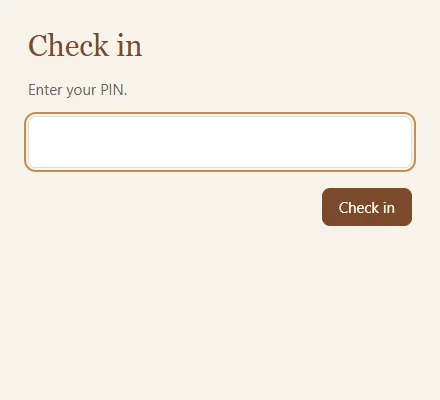
Five wrong PINs within an hour lock PIN check-ins for an hour. You can still check in by unlocking the app with your master password.
The tray icon and Start with Windows
Once connected, a small icon appears in the Windows tray near the clock. It has Check in now..., Open, and Quit. While the tray icon is running, closing the main window locks your vaults and keeps the icon running, so reminders still reach you.
From a day before a check-in is due, Windows shows a notice every 12 hours: "Time to check in. Click here and enter your PIN." If a check-in is overdue, the check-in window opens by itself.
In the Privacy section, tick Start with Windows so the app starts quietly in the tray every time you sign in to Windows. We strongly recommend it.
The discreet name: Weekly Check
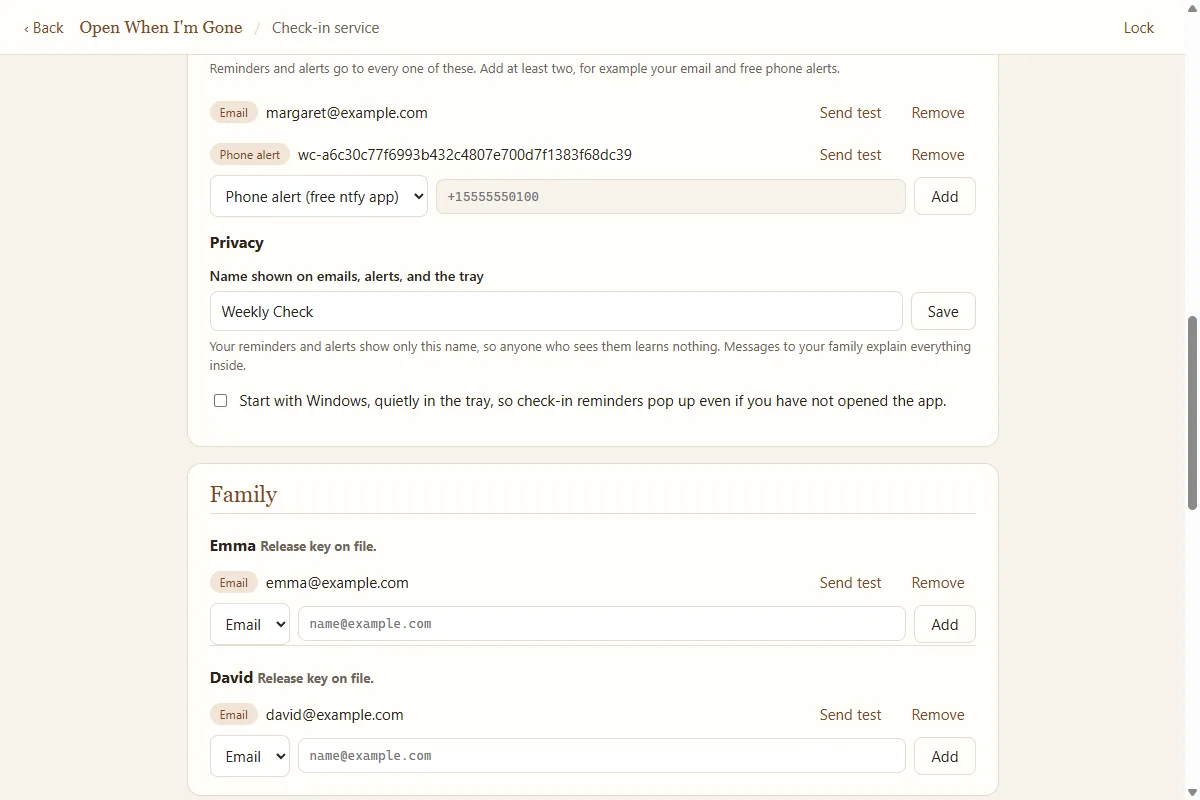
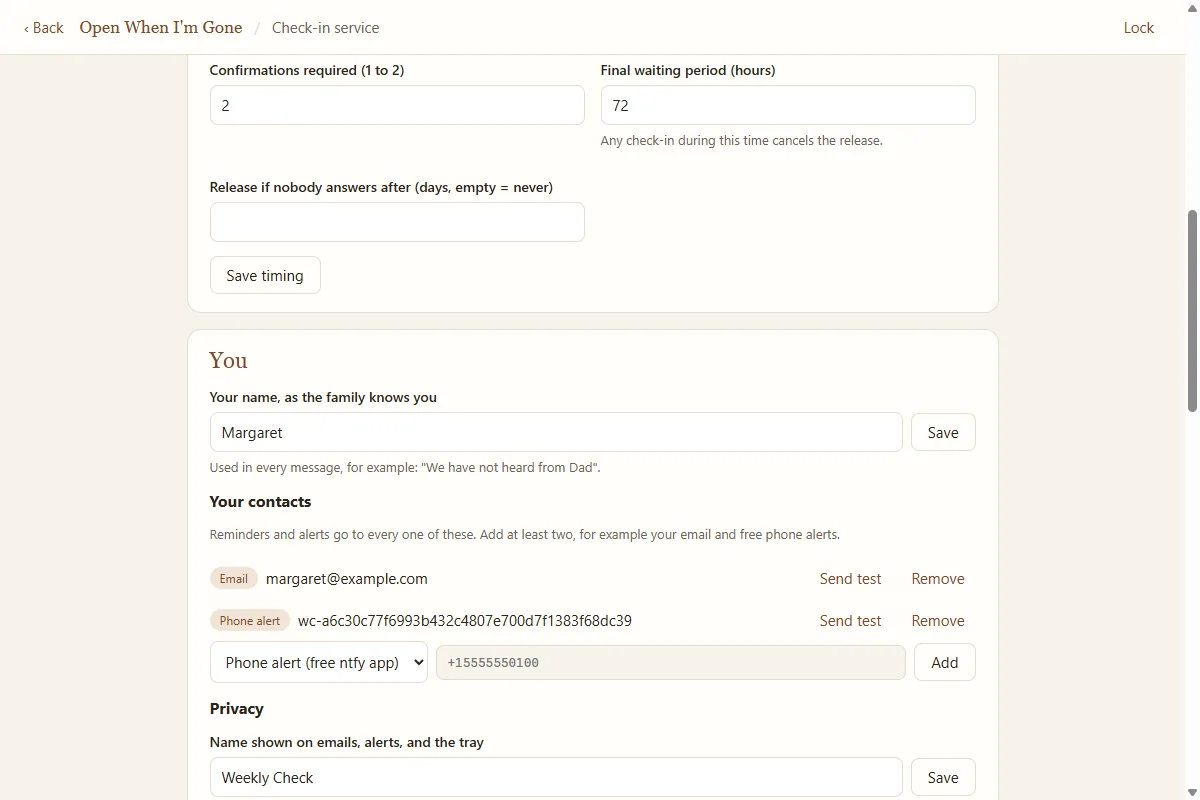
Your reminders, alerts, and the tray show only a neutral name, Weekly Check by default, so anyone who sees them learns nothing. Change it in Name shown on emails, alerts, and the tray (2 to 40 letters, numbers, and spaces). Messages to your family explain everything inside the message.
You: your name and contacts
- Your name, as the family knows youFor example "Dad" or "Grandma Rose". It is used in every message, such as "We have not heard from Dad". Click Save.
- Add your contactsReminders and alerts go to every one of them. Add at least two, for example your email and free phone alerts. Choose the kind, type the address, and click Add:
- Email: any email address you check.
- Phone alert (free ntfy app): an alert on your phone. Recommended. See Phone alerts step by step.
- Test each oneClick Send test next to each contact and make sure it arrives. A test says "This is a test message to check that this address works."
When your contacts change, your old contacts are told too, so nobody can quietly redirect your reminders. Every change of settings sends you a "your settings were changed" email.
Family contacts
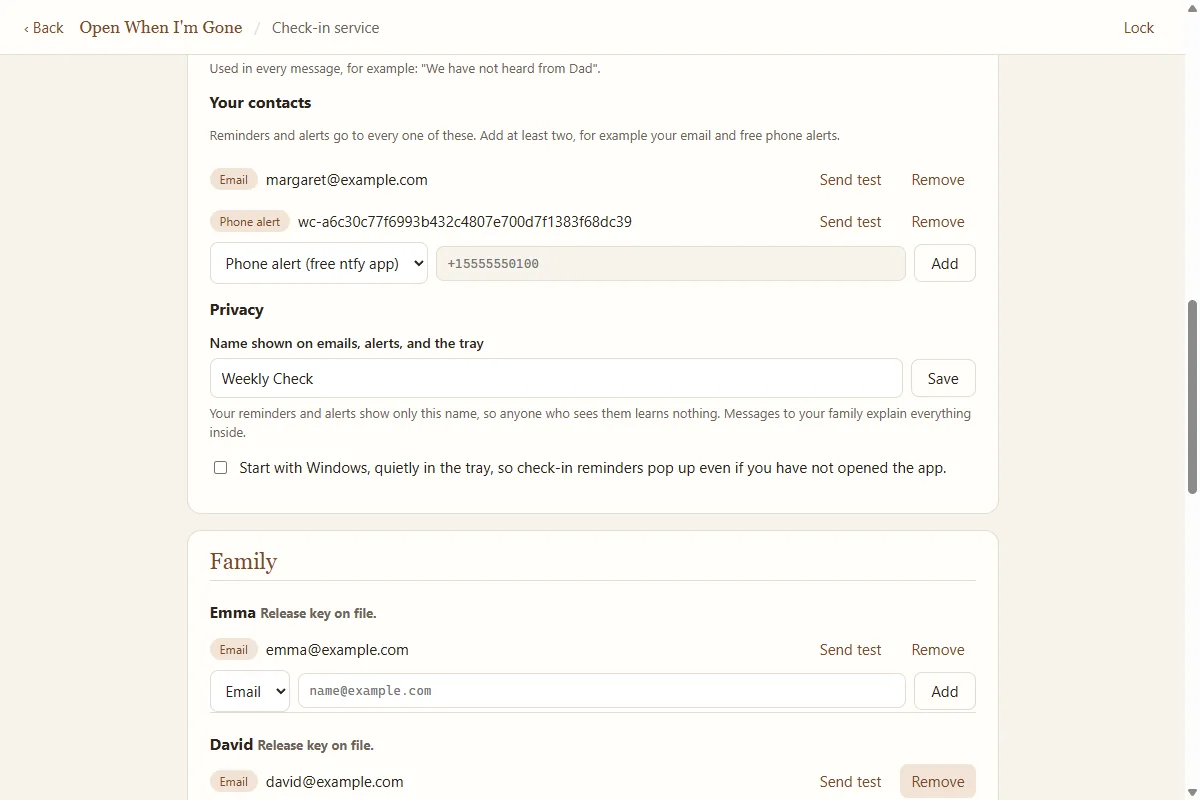
Each person you added appears in the Family section with their own contact list. Add each person's email address, and a second one if they have it. They are contacted only if you stop checking in: first with a question, and at release with their key. Use Send test to check each address.
Each person also shows "Release key on file." or "No release key on file yet". See the note under Connect if a key is missing.
Extra confirmers
Under Extra confirmers you can add trusted people, such as your attorney or a close friend, who can confirm but have no vault. Type a name, click Add confirmer, then add their email.
Timing
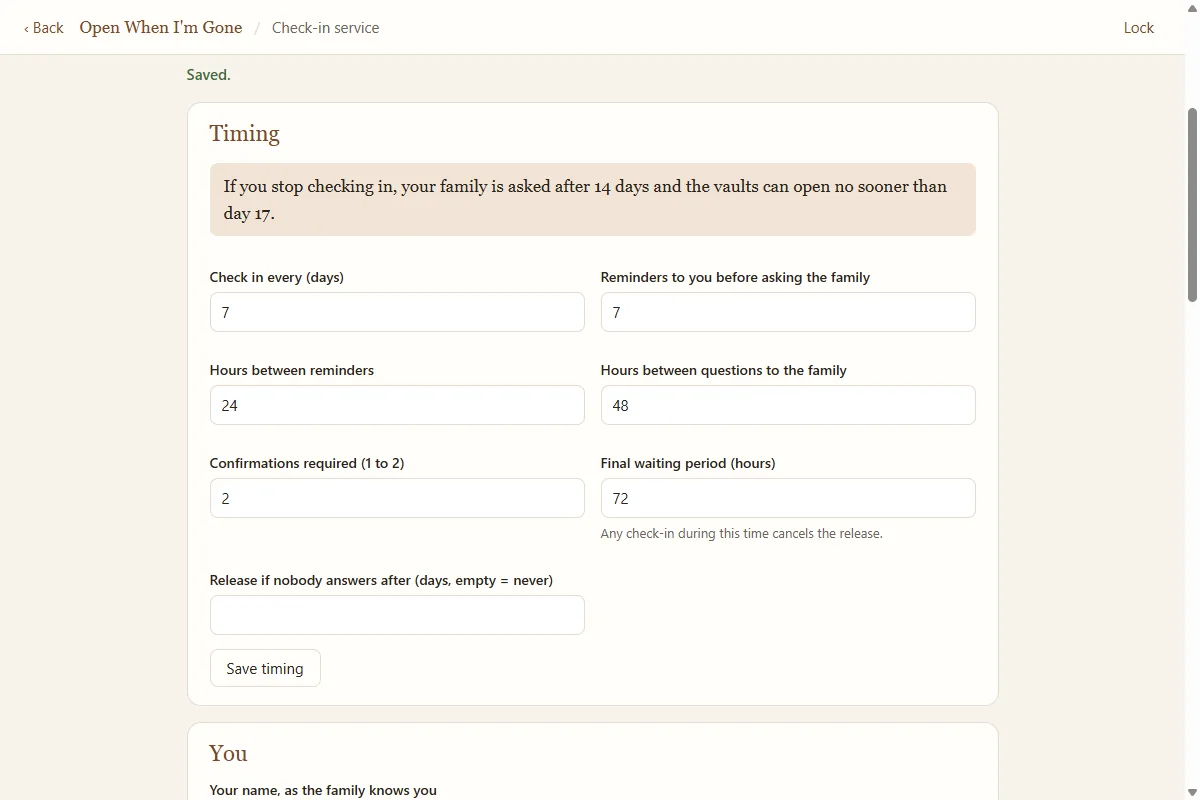
The defaults suit most people. Change any value and click Save timing; a notice is sent to your contacts.
| Setting | Default | Allowed |
|---|---|---|
| Check in every (days) | 7 | 1 to 365 |
| Reminders to you before asking the family | 7 | 0 to 60 |
| Hours between reminders | 24 | 1 to 336 |
| Hours between questions to the family | 48 | 1 to 720 |
| Confirmations required | 2 | 1 up to the number of people and confirmers |
| Final waiting period (hours) | 72 | 1 to 1440 |
| Release if nobody answers after (days) | empty (never) | 1 to 365 |
The app sums it up in plain words. With the defaults: "If you stop checking in, your family is asked after 14 days and the vaults can open no sooner than day 17." If the total is shorter than 5 days it warns you, because a short hospital stay could trigger it.
Pause for travel or a hospital stay
Type a number of days (1 to 60) and click Pause for [N] days. Nothing is sent while paused, and the pause ends by itself. End the pause ends it early. If your family had already been asked, their answers are kept.
Your message at release
- Intro message: a short note shown to your family when their keys are sent. It is stored on the service without vault encryption, so keep it short and put nothing private in it. Your real words belong in the vaults.
- Where to find the vault: plain directions, for example "the gray USB drive in the safe, and in my OneDrive folder".
Click Save.
Run a rehearsal
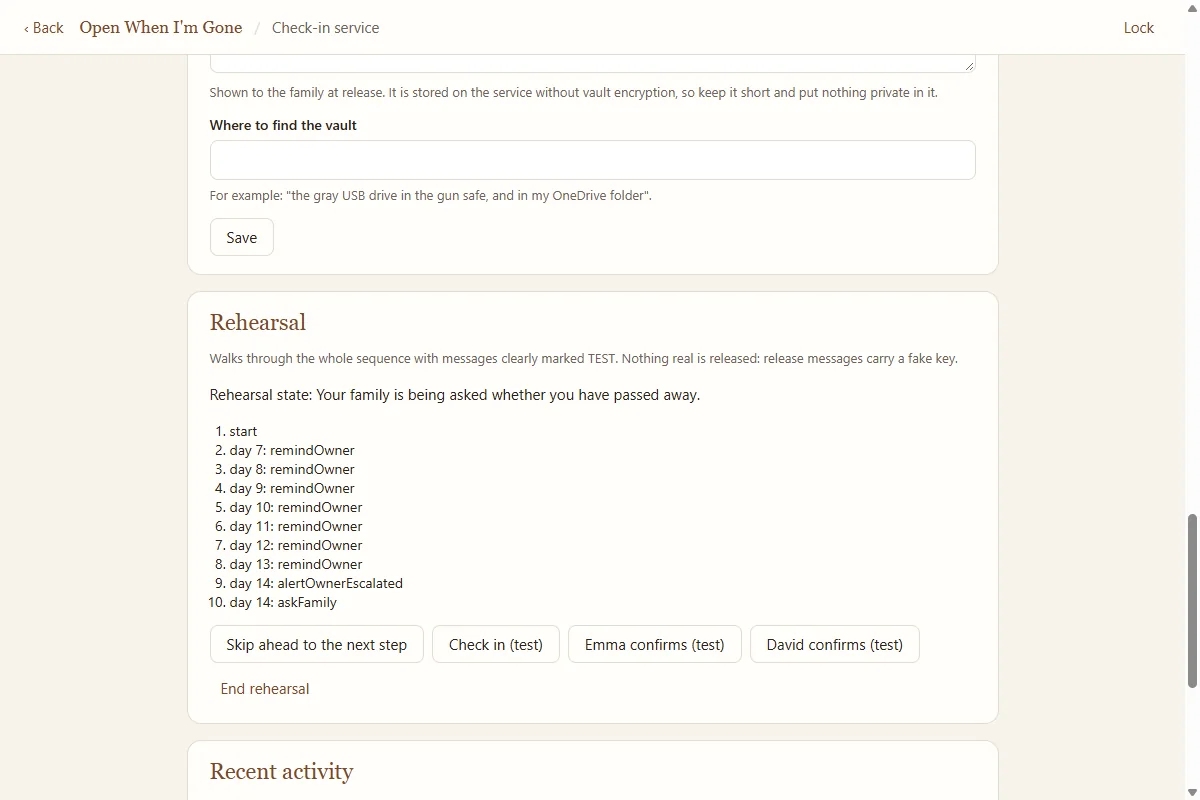
A rehearsal walks through the whole sequence with every message clearly marked TEST. Nothing real is released: release messages carry a fake key that says "TEST ONLY. THIS IS NOT A REAL KEY."
- Tell your family firstLet them know a test is coming, so a TEST message does not upset anyone.
- StartClick Start a rehearsal.
- Step through itSkip ahead to the next step moves time forward until something happens: reminders to you, then the question to your family. Use [name] confirms (test) to act as a family member, or Check in (test) to see a check-in cancel everything.
- Check the messagesMake sure each test message reached you and your family.
- FinishClick End rehearsal.
Recent activity and disconnecting
Recent activity lists the latest events, such as check-ins and changes. Disconnect this computer disconnects the app from the service; your vaults are not affected.
Only disconnect if you mean to stop using the check-in service. Your purchase code works once, so if you need to connect again later, for example on a new computer, write to support@foreverandaday.org and we will help.