Recovery kits and backups
Two simple habits make sure your family can always get in: a sealed envelope for each person, and backup copies of the vaults in more than one place.
Follow along: click the app window and press Windows key + Left arrow, then click this browser and press Windows key + Right arrow. The app and this guide sit side by side.
The recovery kit for each person
When you add a person (or choose Change questions or print a new kit), the app shows their recovery kit. It holds two codes, each 55 letters and numbers in groups of five:
- Recovery code: opens the vault by itself, without the answers and without the check-in service.
- Release key: used together with the three answers. The check-in service also delivers it to them at release.
These codes are shown only once and are not stored on your computer.
- Print itClick Print. Or click Save as PDF, print the PDF, then delete it, because the PDF holds the codes too. The printed page includes QR codes, the person's three questions, and plain instructions for opening the vault.
- Seal itPut the page in an envelope, seal it, and write the person's name on it.
- Store itIn a safe, a safe deposit box, or with your attorney and your estate papers. Whoever holds the envelope can open that person's vault, so treat it like a key.
- ConfirmTick "I have printed or saved this kit page." and click Done.
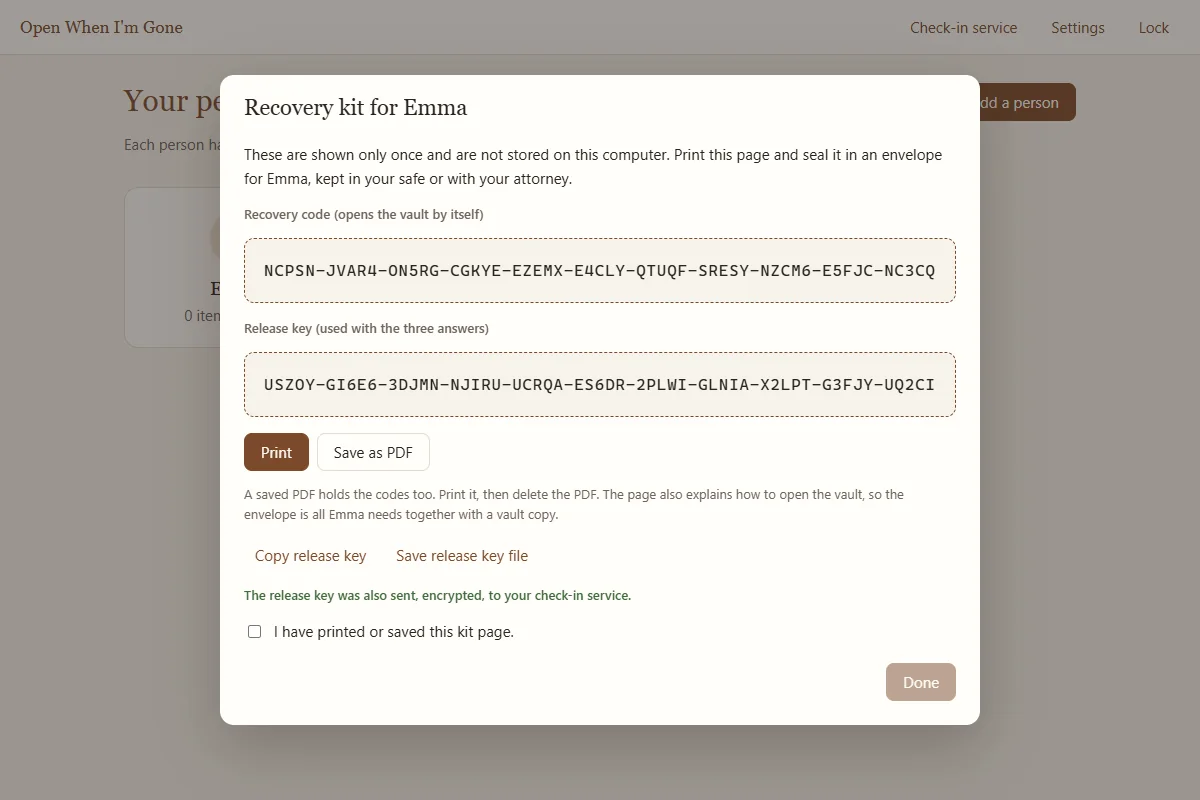
The same window offers Copy release key (the clipboard is cleared after a minute) and Save release key file, which saves a small key file. If the person later double clicks that file, the app opens straight to their unlock screen. If the check-in service is connected, the window also confirms: "The release key was also sent, encrypted, to your check-in service."
Making a new kit for a person replaces their codes. The old envelope and any old key files stop working, so destroy them and seal the new page.
Automatic backups
Backups copy the vaults exactly as they are, still encrypted, together with the viewer program your family will need. We recommend two copies: a USB drive kept in your safe, and a second folder somewhere else, such as your own OneDrive, Google Drive, or Dropbox folder. Because the copies are encrypted, a cloud folder is fine.
Set up a USB drive
- Plug in the driveUse a drive you will keep for this. Any size that fits your vaults is fine.
- Open SettingsOn the home screen click Settings and scroll to Backups.
- Mark the driveClick Set up a USB drive and choose the drive. The app marks it and makes the first backup right away.
- From now onWhenever you plug that drive in while the app is running, it is backed up automatically. Only drives the app marked itself are used.
Set up a backup folder
- Choose the folderIn Backups, click Choose folder and pick a folder, for example inside your OneDrive. It must be outside the vault folder.
- From now onThe folder is updated every time the app locks. Change picks another folder and Stop turns it off.
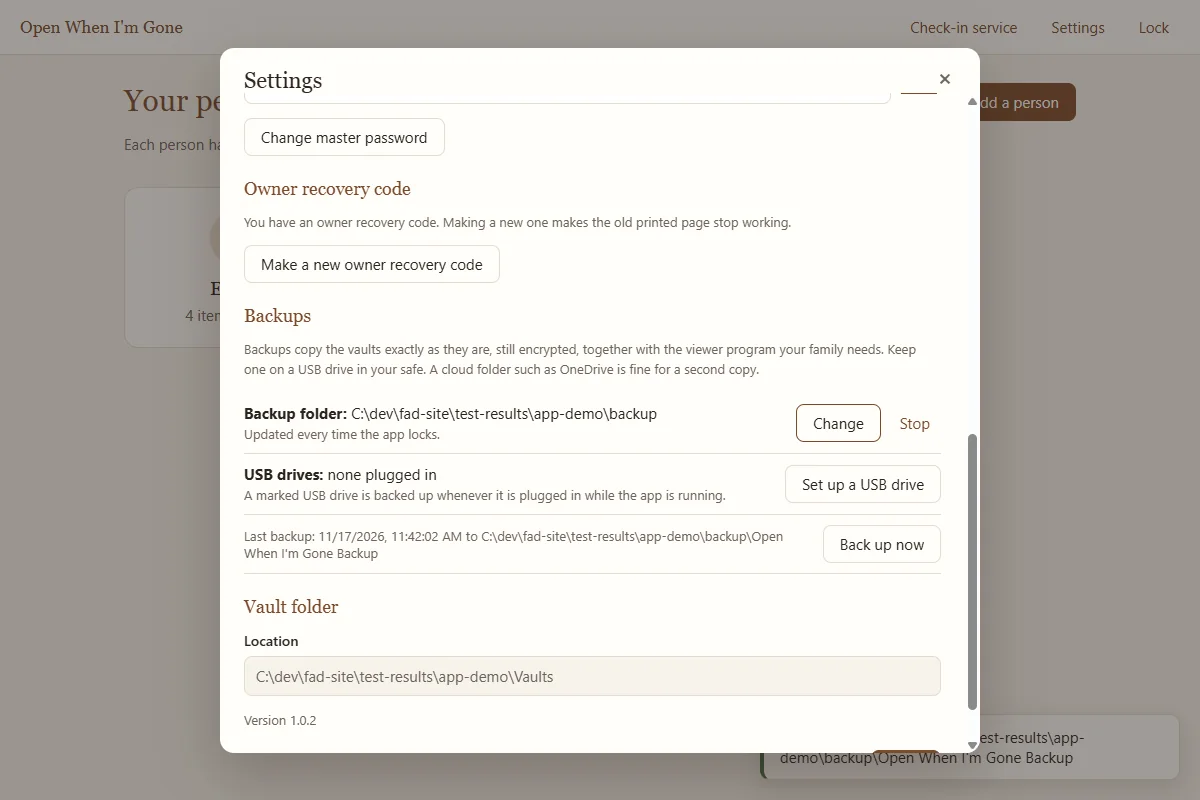
The line Last backup shows when and where the latest copy was made. Back up now makes one immediately.
What a backup contains
Each backup is a folder named Open When I'm Gone Backup containing:
| Item | What it is for |
|---|---|
| Open When I'm Gone Viewer.exe | The program your family runs to open their vault. It needs no installation. |
| Vaults | The encrypted vaults themselves. |
| README.txt | Short plain instructions for your family. |
| FORMAT.md and owig_decrypt.py | A full description of the vault format and a small open script, so a technician can open a vault decades from now even without this app. |
Backups only ever add. Nothing is deleted from a backup, and changed files keep their older version beside them. This protects you from mistakes and from ransomware. It also means an item you remove in the app stays in older backups.
If the app notices the vault folder looks damaged, it stops the backup so the good copies stay as they are, and tells you.
Where to keep everything
| What | Where |
|---|---|
| Your master password | In your head, and written down somewhere private. |
| Your owner recovery page | With your important papers, away from the computer. |
| Each person's sealed recovery kit | A safe, a safe deposit box, or with your attorney. |
| Backup USB drive | A safe or safe deposit box, plugged in now and then to update. |
| Second backup copy | A different place, such as your own cloud folder. |
Tell someone you trust where the envelopes and the USB drive are. In Settings, the field Where the vault copies are kept lets you describe this in plain words for the family guides, for example "on the gray USB drive in the safe, and in my OneDrive folder".