Phone alerts and text messages
The easiest way to get your check-in reminders on your phone is a free phone alert through the ntfy app. It works like a text message, costs nothing, and needs no account and no phone number. Setup takes about two minutes.
Follow along: click the app window and press Windows key + Left arrow, then click this browser and press Windows key + Right arrow. The app and this guide sit side by side.
How phone alerts work
ntfy (pronounced "notify") is a free, open source notification app for iPhone and Android. You subscribe it to a private channel name that the Open When I'm Gone app creates for you. When a reminder is due, the check-in service sends it to that channel and your phone shows it like any other notification.
- The alert shows only your discreet name, Weekly Check by default, and a link to check in. Nothing in it mentions death, vaults, or this product.
- The channel name is long and random, so nobody can guess it. Keep it private: anyone who knows it could read your alerts. Alerts never contain keys or passwords.
- Phone alerts are for you, the owner. Your family is reached by email.
Set up phone alerts, step by step
Have your computer and your phone side by side. Start on the computer.
- On the computer: choose Phone alertIn the app, open Check-in service. Under Your contacts, open the list of contact kinds and choose Phone alert (free ntfy app). The app fills in a private channel name that starts with wc- and shows the setup instructions. Do not click Add yet.
- On the phone: install ntfyOpen the App Store (iPhone) or Google Play (Android), search for ntfy, and install the free app by Philipp Heckel. Open it.
- On the phone: subscribe to your channelTap the + button. In the topic name box, type the channel name from your computer screen exactly, including wc- at the start. Leave the server as ntfy.sh (do not choose another server). Tap Subscribe.
- On the phone: allow notificationsIf the phone asks whether ntfy may send notifications, choose Allow. Without this, alerts arrive silently.
- On the computer: add and testBack in the app, click Add, then Send test next to the new phone alert. Within a minute or two your phone shows: "Test alert. You do not need to do anything."
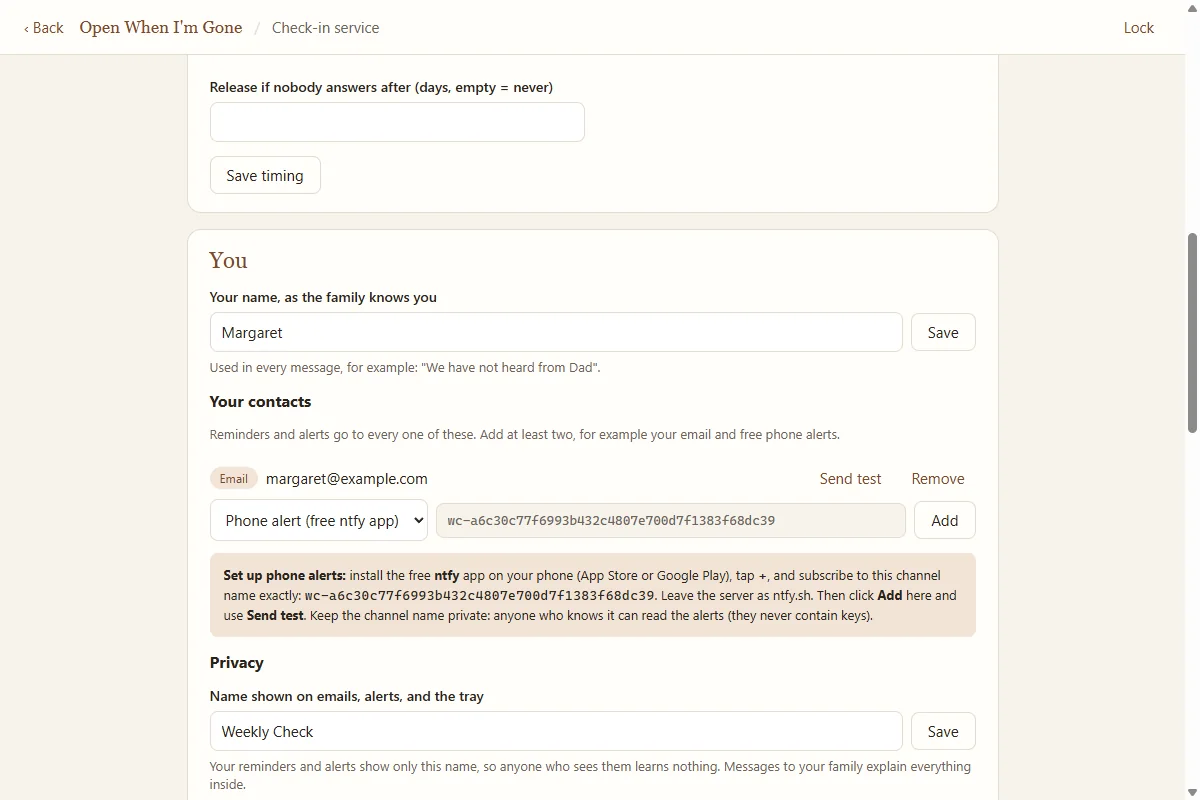
Typing the channel name: it is long on purpose. Type it slowly and check every character. If the test does not arrive, the name on the phone almost always differs by one character: delete the subscription in ntfy and subscribe again.
Notes for iPhone
- The + button is at the top right of the ntfy app.
- In the iPhone Settings app, under Notifications, then ntfy, make sure Allow Notifications is on. Turn on Time Sensitive Notifications if it is offered, so alerts can come through Focus modes.
Notes for Android
- The + button is at the bottom right of the ntfy app.
- On Android 13 and newer, allow notifications when asked. If you missed it: Settings, then Apps, then ntfy, then Notifications.
- If the subscribe screen offers Instant delivery, turn it on. If alerts arrive late, open Settings, then Apps, then ntfy, then Battery, and choose Unrestricted so the phone does not put ntfy to sleep.
What the alerts look like
Each alert is one short line with your discreet name and a link, for example a reminder that your Weekly Check is due. Tap it, and the link opens a page asking for your check-in PIN. Type your PIN and you are checked in. The same alerts go to your email contacts at the same time.
You receive an alert when:
- a check-in is overdue (one reminder a day for 7 days, by default);
- your family is being contacted because you did not check in;
- a family member starts the process, or enough people confirm, which starts the final waiting period;
- any of your settings change.
Text messages (SMS)
Real text messages through a phone carrier need a paid texting service connected to the check-in service. Texting is not turned on for the Forever and a Day check-in service at this time, so the app offers only Email and Phone alert as contact kinds. When texting is turned on, a Text message choice appears in the same list, and the status line shows "Text messages: on".
- For yourself, use a phone alert. It reaches your phone the same way a text would, for free.
- For your family, use email. If you can, add two email addresses for each person, for example a personal and a work address.
Using an older version of the app (1.0.1) that shows "Text (needs Twilio)"? Do not choose it: no texts are sent, and its Send test answers "Sending is not set up on the service yet." Download the current version from your order page.
Make sure every person has at least one working email address, and that you have an email and a phone alert, each tested with Send test.
Quick check
- Your contacts include an email address and a phone alert.
- Send test reached both.
- Every family member has at least one email address that passed Send test.
- You ran a rehearsal and the TEST messages arrived (see Rehearsal).