Letters, recordings, and files
Everything you add is encrypted as it goes into the vault. Recordings are encrypted while they are being made, so an unencrypted copy never touches your disk.
Follow along: click the app window and press Windows key + Left arrow, then click this browser and press Windows key + Right arrow. The app and this guide sit side by side.
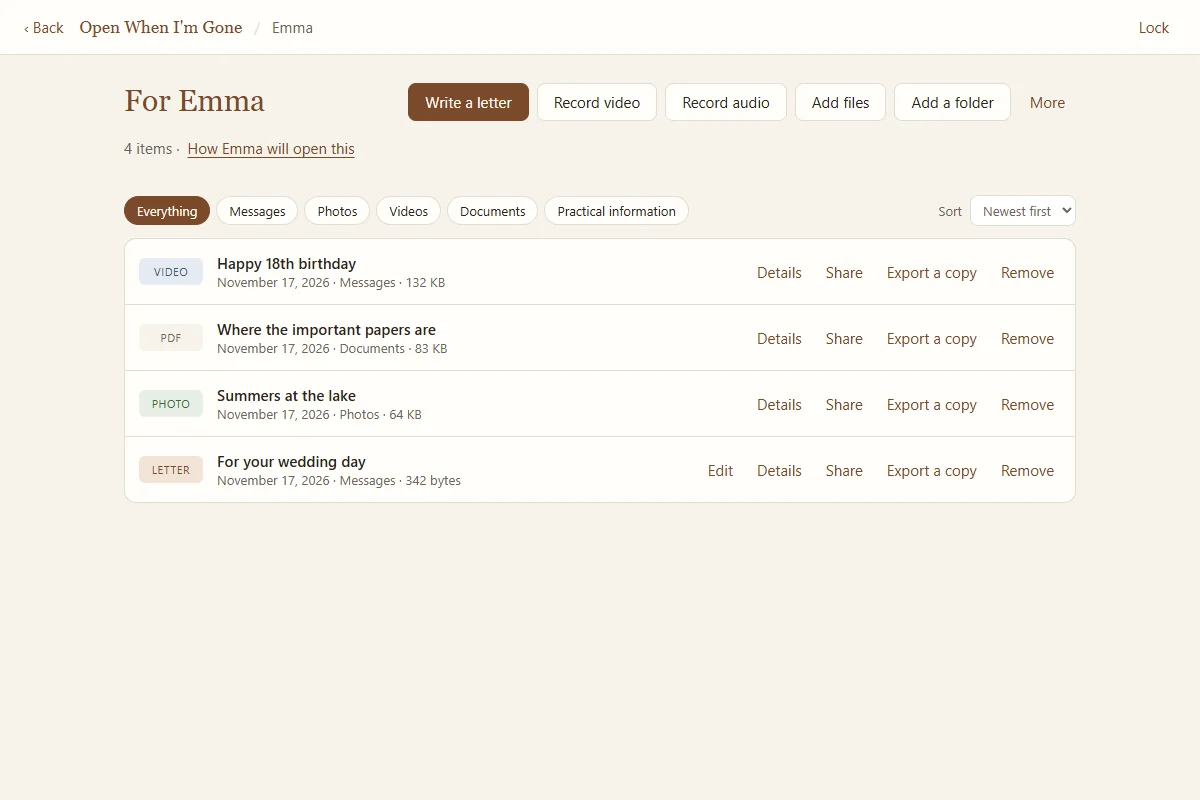
Write a letter
- Open the editorOn the person's page click Write a letter.
- Give it a title and dateFor example "For your wedding day". The date starts as today; change it if you like.
- WriteUse the toolbar for Bold, Italic, Heading, List, and Quote. The letter saves itself two seconds after you stop typing. The status beside the title shows "Saving..." and then "Saved".
- FinishClick Done, or Back, which also saves. To change it later, click Edit on the letter in the list.
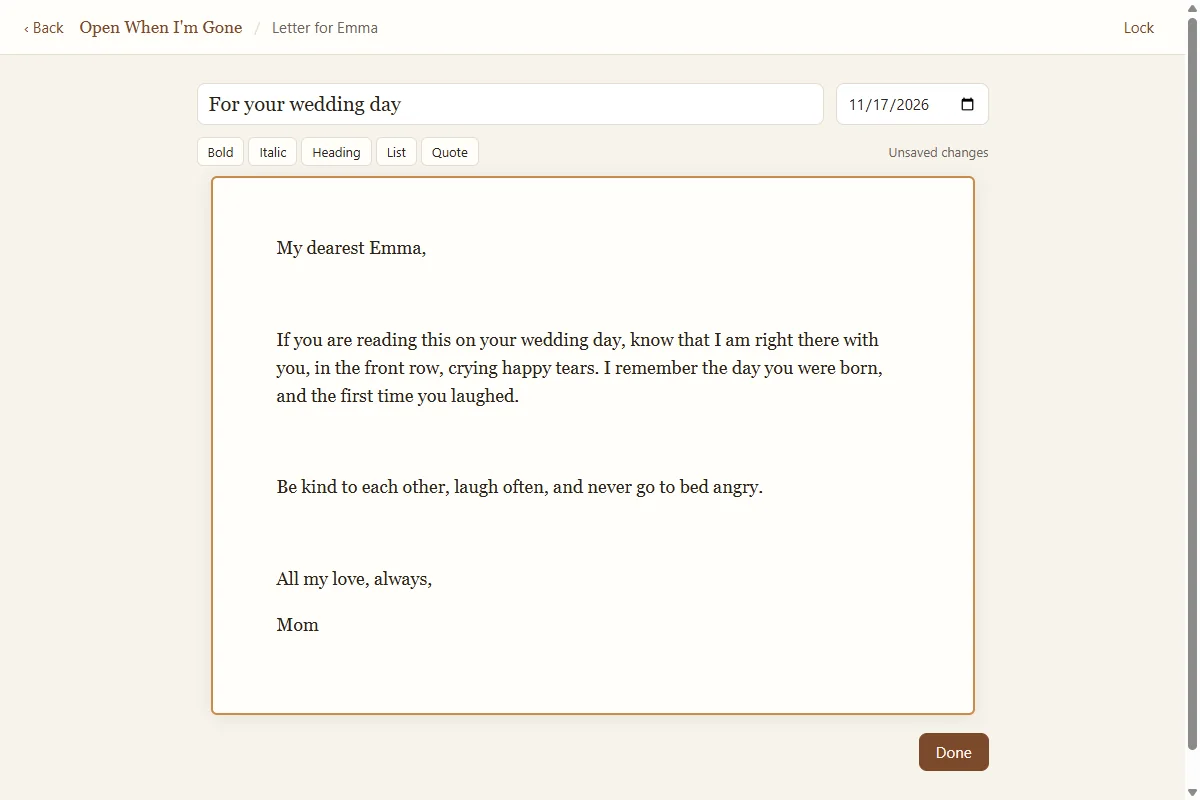
Letters hold text only: paragraphs, headings, bold, italic, lists, and quotes. To include a photo with a letter, add the photo to the same vault and mention it in the letter.
Record a video or voice message
- StartClick Record video or Record audio.
- Choose your camera and microphonePick them from the Camera and Microphone lists, or keep the defaults. The preview and the level bar show they work. For a voice message, speak to test the microphone.
- RecordClick Start recording. Use Pause and Resume as often as you like, then Stop.
- ReviewPlay it back. Give it a Title, Date, and an optional Note such as "For your 18th birthday".
- Keep it or try againSave keeps it. Re-record deletes it and starts over. Discard deletes it and closes.
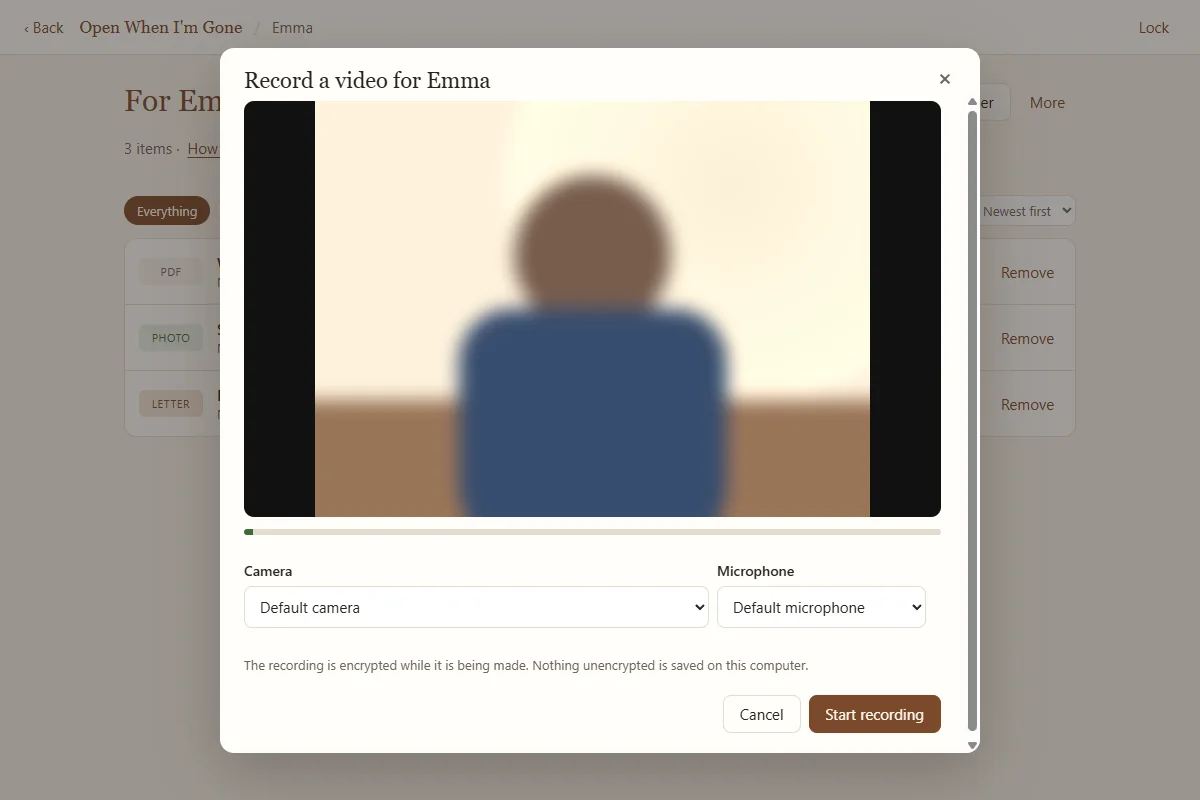
Videos are saved as standard MP4 and voice messages as M4A, formats that will still play decades from now. There is no time limit beyond the space on your disk.
If the app says the camera or microphone is being used by another program, close that program (for example a video call) and try again. Auto-lock never interrupts a recording, but pressing Lock cancels it.
Add photos, documents, and other files
- Choose files or a folderClick Add files to pick files, or Add a folder to add a whole folder. You can also drag files and folders straight onto the person's page.
- Wait for encryptionA progress window shows each file as it is encrypted. Nothing is copied unencrypted. Cancel stops the import; the summary then says which files were not added.
- Read the summary"Added to the vault" lists what was added and anything that could not be read.
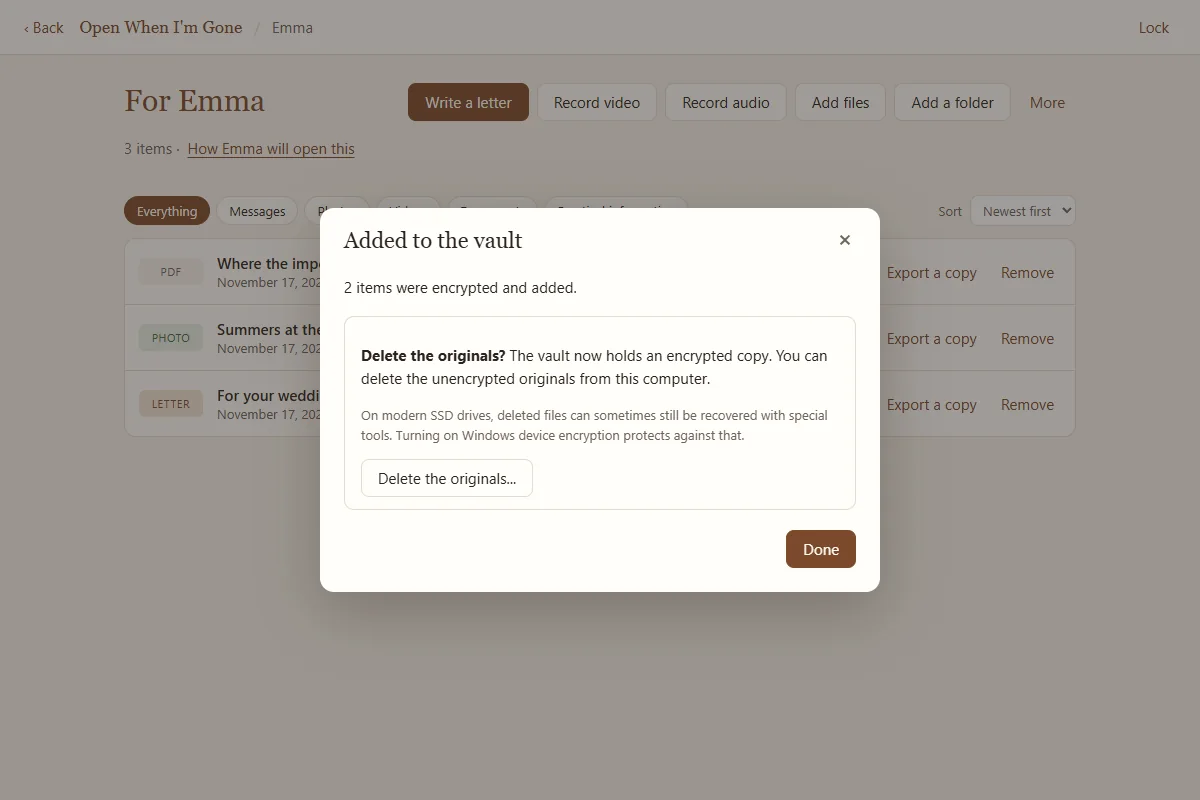
Deleting the originals
The summary offers Delete the originals.... The vault already holds an encrypted copy, so you can remove the unencrypted files from your computer. Only the files that were actually added are deleted, and you confirm first. On modern SSD drives, deleted files can sometimes still be recovered with special tools; turning on Windows device encryption protects against that.
Files that may not open in 20 years
If you add a file in a format that may not open in the future, such as Apple Pages, Publisher, or OneNote files, the summary suggests also adding a PDF or plain text copy. That is a good habit for anything important.
Organize, find, and view
- Groups: every item belongs to a group: Messages, Photos, Videos, Documents, or Practical information. The app picks one automatically. Use the group chips above the list to show one group, or Everything.
- Sort: Newest first, Oldest first, Title, or Type.
- View: click an item to open it. Photos, videos, voice messages, PDFs, text files, and letters open inside the app. Anything else, such as Word documents or iPhone HEIC photos, is kept safely and can be saved out with Export a copy.
Details: title, date, group, and note
Click Details on any item to change its Title, Date, Group, and Note. Use Practical information for things like where the papers are, accounts, and who to call. The app never puts anything there by itself.
Share an item with several people
Click Share on an item, then Share next to each person who should also have it. A separate encrypted copy is made in each person's vault, so removing it from one vault leaves the others untouched.
Export a copy
Export a copy saves an unencrypted copy of the item wherever you choose. Letters are saved as web pages you can open in any browser. Remember that an exported copy is no longer protected.
Remove an item
Remove deletes the item from this person's vault after you confirm. Copies shared with other people stay in their vaults. Backups never delete anything, so older backup copies still hold it.