Install and create your vaults
Download the app, install it, and set up your vaults with a master password. This takes about ten minutes.
Follow along: click the app window and press Windows key + Left arrow, then click this browser and press Windows key + Right arrow. The app and this guide sit side by side.
Before you start
- A Windows 10 or Windows 11 computer (64 bit). For recording, a webcam and a microphone.
- Your purchase code, which starts with FAD-. It is on the screen after you buy, in your order email, and on your order page. You need it later, when you connect the check-in service. If you cannot find it, use the lost code page.
- A pen and paper for your master password, and a printer for your recovery pages. Saving them as a PDF works too.
Download and install
- Download the installerOpen the link in your order email, or your order page, and click Download for Windows. The file is about 230 MB and is named like OpenWhenImGone-Setup-1.0.2.exe.
- Run itOpen your Downloads folder and double click the file. The installer is digitally signed. If Windows asks whether to allow the app to make changes, choose Yes.
- Choose where to installYou can keep the suggested folder or pick another one. The app installs for your Windows account only, and adds a shortcut named Open When I'm Gone.
- Open the appUse the shortcut. It shows "Starting up..." for a moment and then the welcome screen.
Only one copy of the app runs at a time. If you open it again, the window that is already open comes to the front.
The welcome screen
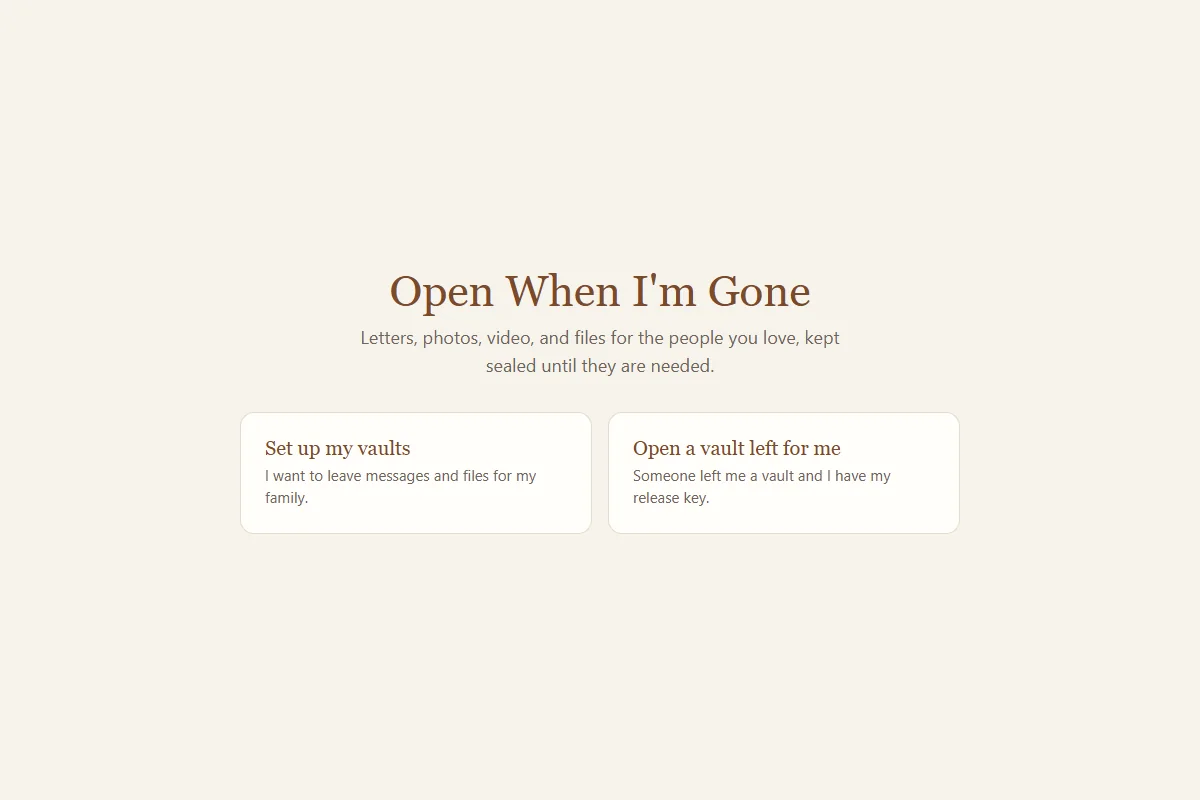
The first time you open the app it offers two choices:
- Set up my vaults: "I want to leave messages and files for my family." This is you.
- Open a vault left for me: for a family member who has been sent a release key. See What your family will see.
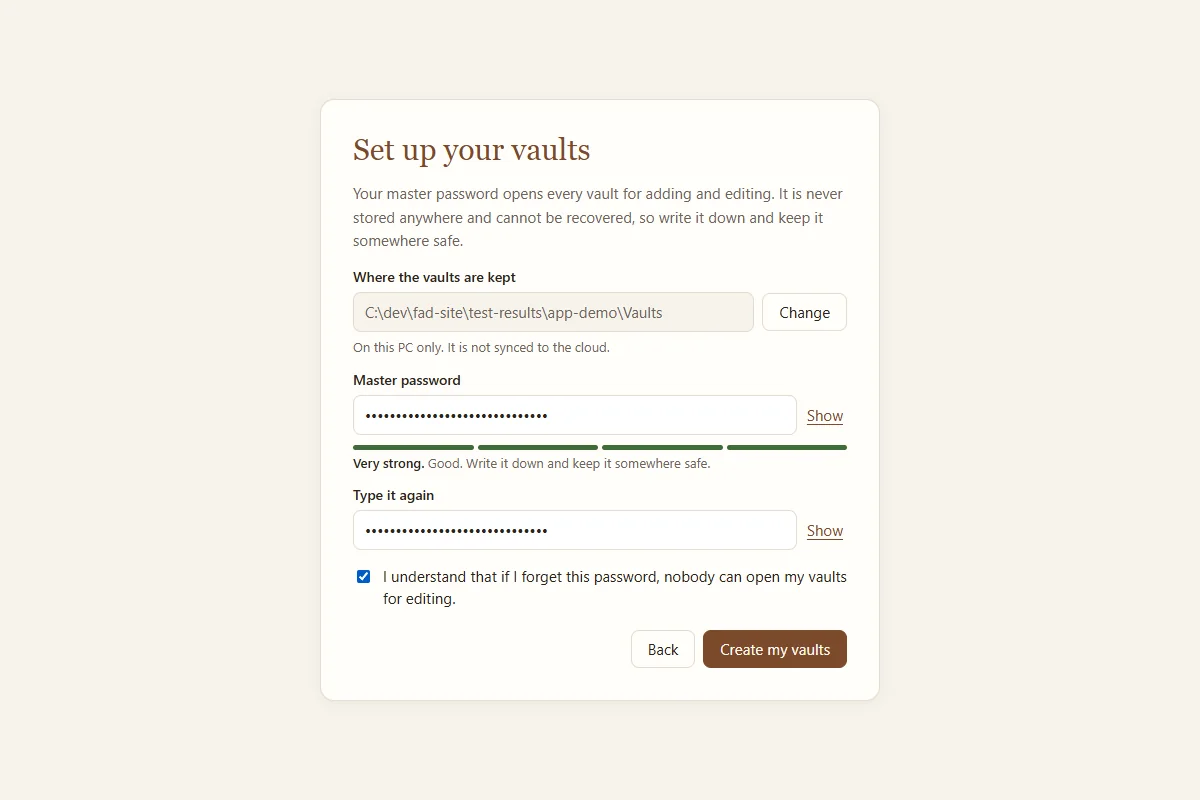
Set up your vaults
- Where the vaults are keptThe app suggests a folder on this computer. Under it you should see: "On this PC only. It is not synced to the cloud." We recommend keeping that. If you click Change and choose another folder, the app creates a folder named Open When I'm Gone Vaults inside it.
- Choose a master passwordType it in Master password, then again in Type it again. It must be at least 10 characters. The meter under it rates it from "Too weak" to "Very strong". The easiest strong password is a short sentence only you would think of, like four or five unrelated words. Click Show to check what you typed.
- Write it downYour master password is never stored anywhere and nobody can recover it for you, including us. Write it on paper and keep it somewhere safe.
- Confirm and createTick "I understand that if I forget this password, nobody can open my vaults for editing." and click Create my vaults. The app takes a few seconds while it "tunes its protection to this computer".
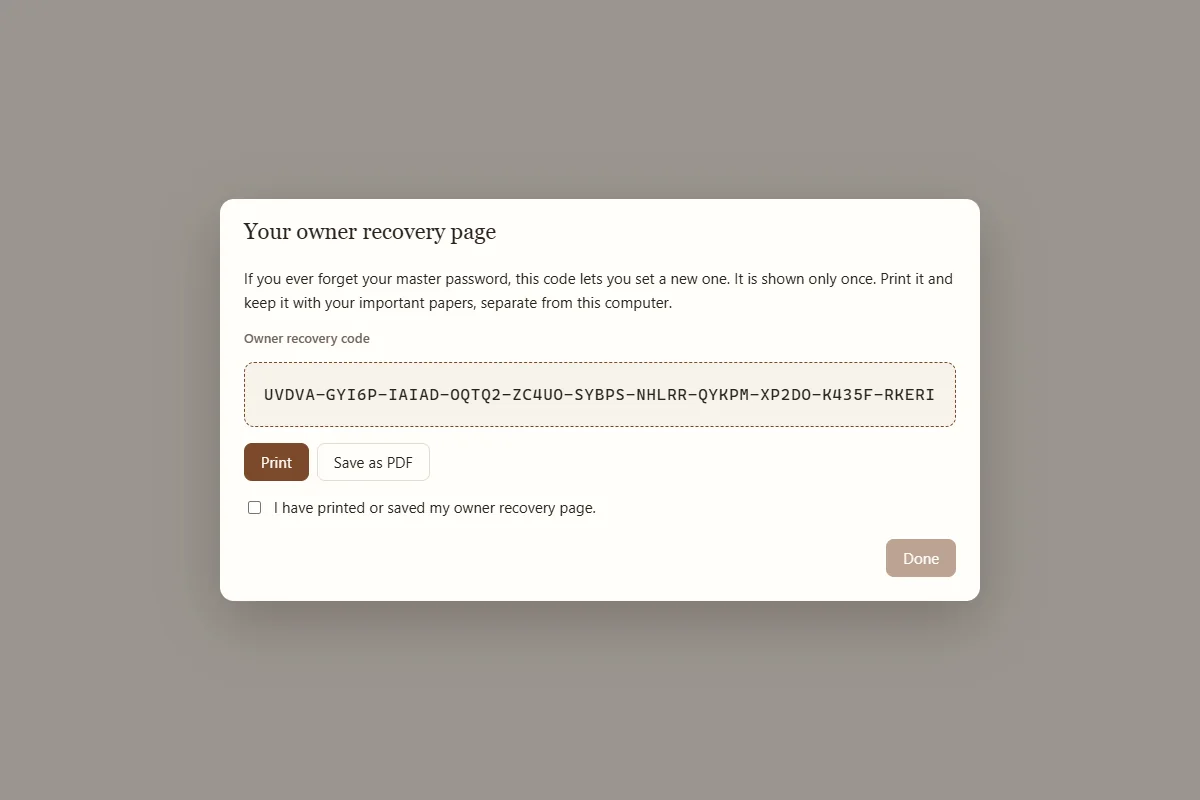
Your owner recovery page
Right after setup the app shows Your owner recovery page, with an owner recovery code of 55 letters and numbers. It is shown only once.
- Print it or save itClick Print, or Save as PDF. A saved PDF goes to your Desktop by default. Print it, then delete the PDF, because the PDF holds the code too.
- ConfirmTick "I have printed or saved my owner recovery page." (it ticks itself after printing or saving) and click Done.
- Store it safelyKeep it with your important papers, away from this computer. Anyone holding this page can change your master password and open every vault.
If you ever make a new owner recovery code in Settings, the old printed page stops working. Destroy it and keep the new one.
Opening the app from now on
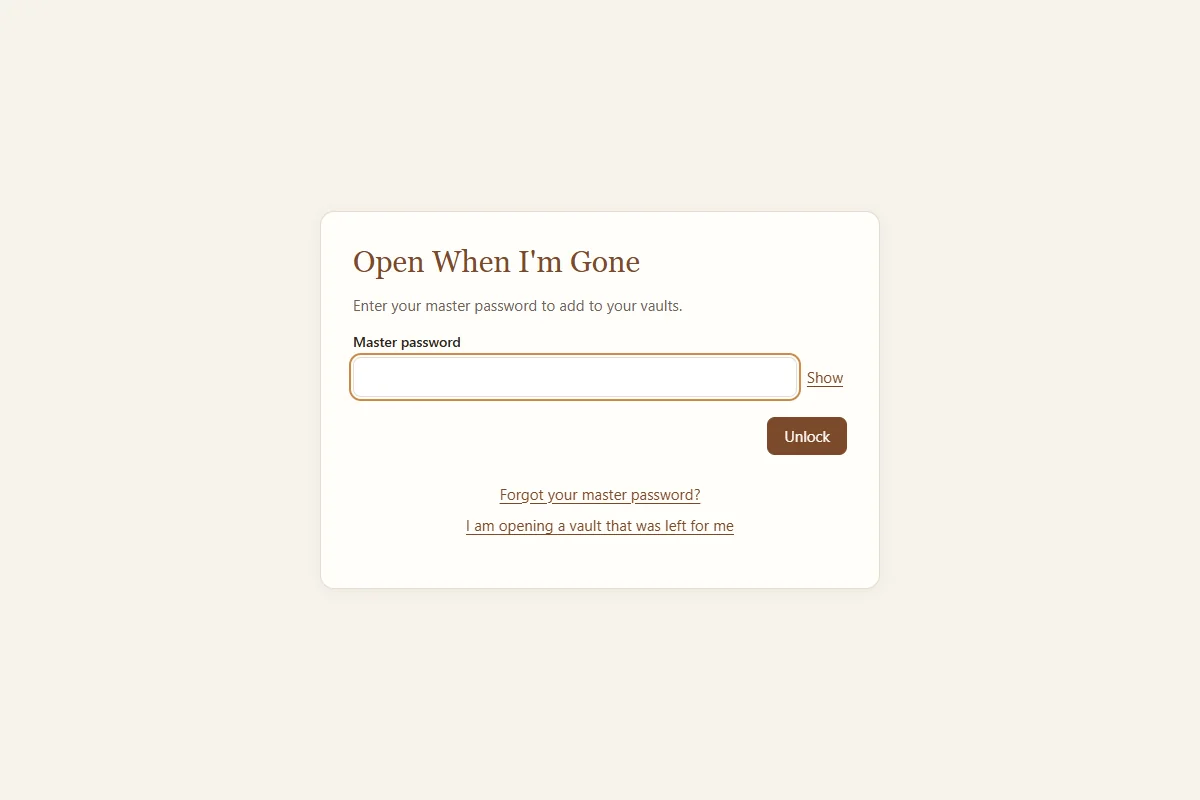
Each time you open the app it asks for your master password. Type it and click Unlock. Unlocking with your master password also counts as a check-in with the check-in service, once you have connected it.
If you forget your master password
- Start recoveryOn the unlock screen click Forgot your master password?
- Type the owner recovery codeType the code from your printed owner recovery page and click Continue. Capital letters, spaces, and dashes do not matter, and look alike characters such as 0 and O are accepted either way.
- Choose a new master passwordType it twice and click Save new password. Your vaults open as usual.
Without your master password and without the owner recovery page, nobody can open your vaults for editing. Your family can still open their own vaults when the time comes, with their own keys.