Settings, locking, and privacy
Your files never leave your computer unencrypted, and they are never uploaded to us. Here is exactly where everything is kept, and every setting in the app.
Follow along: click the app window and press Windows key + Left arrow, then click this browser and press Windows key + Right arrow. The app and this guide sit side by side.
Where your files are kept
| What | Where it is | Who can read it |
|---|---|---|
| Your letters, recordings, photos, and files | On your own computer, in the vault folder, encrypted. | You, with your master password. Each family member, only their own vault, after release. |
| Backup copies | Only where you choose: a USB drive, and a folder you pick, which can be your own OneDrive, Google Drive, or Dropbox. Still encrypted. | Nobody without the keys, including the cloud company. |
| Check-in service records | The Forever and a Day check-in service: your settings, contact details, each person's three questions (never the answers), their release keys (encrypted), and your intro message. | Only the service, to run your check-ins and contact your family. |
Nothing you store is ever uploaded to us or to any cloud drive of ours. We never receive your letters, recordings, photos, files, master password, answers, or recovery codes, so we could not read or hand them over even if asked. More detail is on the Security and privacy page.
When you first set up, the app keeps the vault folder on this PC only and says "On this PC only. It is not synced to the cloud." We recommend leaving it there and using backups for extra copies.
Settings
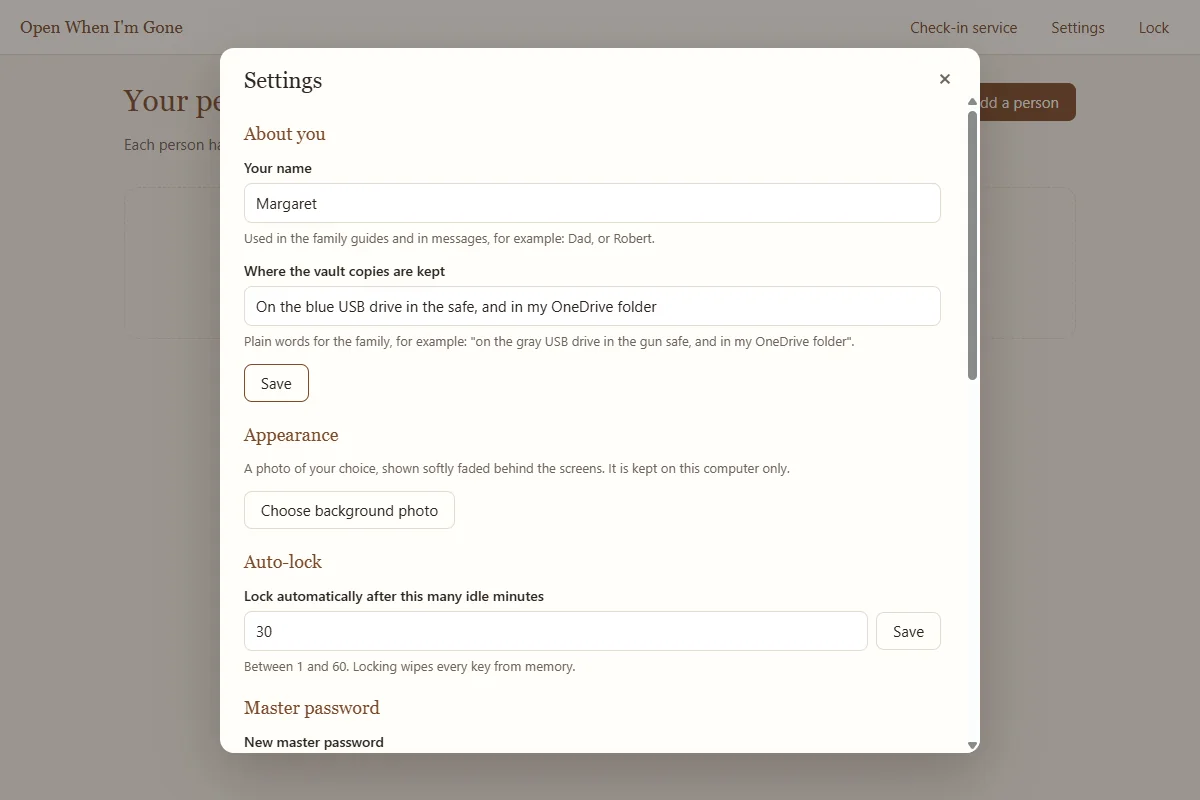
On the home screen click Settings.
About you
- Your name: used in the family guides and in messages, for example "Dad" or "Robert". If the check-in service is connected, it is updated there too.
- Where the vault copies are kept: plain words for your family, for example "on the gray USB drive in the safe, and in my OneDrive folder".
Appearance
Choose background photo shows a photo of your choice softly faded behind the screens (JPG, PNG, or WEBP, under 20 MB). It stays on this computer only. Remove takes it away.
Auto-lock
The app locks itself after a number of idle minutes, 5 by default, anywhere from 1 to 60. Locking wipes every key from memory.
Master password
Type a new master password twice and click Change master password. Your vaults stay as they are.
Owner recovery code
Make a new owner recovery code creates and shows a new owner recovery page. The old printed page stops working, so destroy it.
Backups and vault folder
Backups are covered in Recovery kits and backups. Vault folder shows where your vaults are kept. The app version is shown at the bottom.
Locking
The app locks, and wipes its keys from memory, when:
- you click Lock;
- you lock Windows or the computer goes to sleep;
- it has been idle for your auto-lock time;
- you close the window while the tray icon is running, or quit the app.
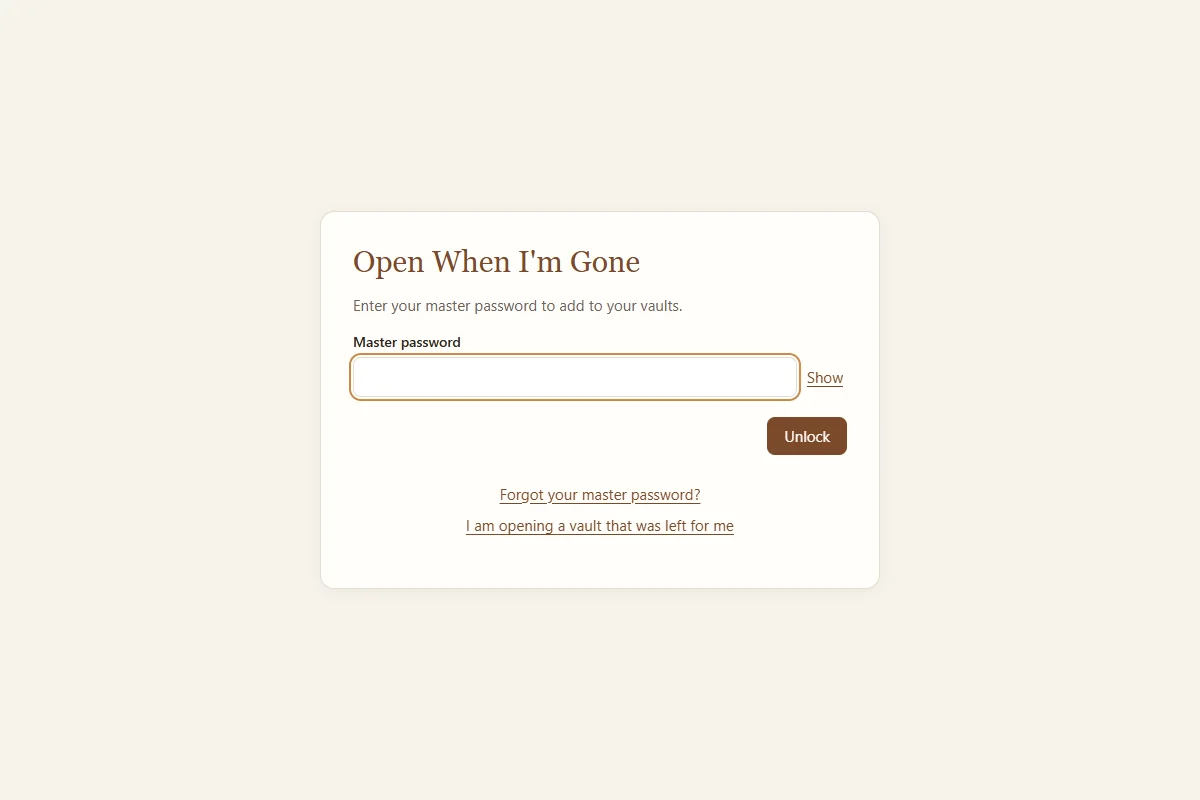
It never locks in the middle of adding files or recording. Locking also updates your backup folder. To continue, type your master password.
Good habits
- Turn on Windows device encryption (in Windows Settings, under Privacy and security).
- Keep Windows up to date.
- Plug in your backup USB drive now and then so it stays current.
- Once a year: open one vault from the USB drive with a kit, test every contact with Send test, and print new kits if anything changed.